Working from the couch is hurting your back, and you want a fix that doesn’t need a new desk. An ergonomic home office setup comes down to a supported chair, a raised screen and a keyboard at elbow height.
This guide is part of the home wellness series on i99pros.com.
| Setup item | Guideline |
|---|---|
| Hip angle | 90-110 degree angle |
| Elbow angle while working | approximately 90 degrees |
| Monitor distance | about an arms length away |
| Eye level on the screen | top 1/3 of the screen |
| Monitor position relative to a window | 90 degrees to the window |
These figures come from the University of Pennsylvania’s home office ergonomics page, last revised July 29, 2025. Guidance can change, so check the source before you rely on them.
What does a neutral posture look like?
A neutral posture means your joints rest in relaxed, unforced positions while you type and look at the screen. The University of Pennsylvania’s environmental health and safety office lists the cues in its home ergonomics guidance, and they are easy to check against your own desk.
- Feet flat on the floor, or on a foot rest if you had to raise your chair to get your arms in the right place.
- Thighs supported by the chair, with your knees clear of the seat edge.
- A backrest that gives lumbar support.
- Shoulders relaxed and elbows close to your body.
- Head centered over your body and facing forward.
The same page puts your hips at a 90-110 degree angle and your elbows at approximately 90 degrees when you work, as the university guidance explains. Treat those numbers as targets to adjust toward, not as a test you pass or fail.
Choose a chair that supports your lower back
When you work remotely, the guidance says to pick a chair with some lumbar support. It also warns that a cushioned couch or a seat propped up in bed feels tempting, but prolonged sitting in those spots can hurt your lower back, according to the same guidance.
You rarely need to buy anything to improve what you already own:
- On a solid dining chair, add a seat cushion for support or to lift you to the right height.
- If the seat has no lumbar support, a lumbar pillow or a rolled towel can fill the gap.
- Choose a chair that lets your elbows land at the height of the work surface.
If you have to raise the chair to match the table, a foot rest keeps your feet supported. Adjust the seat first, then judge the rest of the desk from there.
Raise the screen and tame the laptop
A laptop is not designed to be your primary computer, as the university’s home office page puts it. The screen is attached to the keyboard, so when one sits at the right height the other does not, and you end up hunching forward.
If you use a laptop regularly, the page suggests turning it into a monitor:
- Lift the laptop onto boxes, books or another solid surface so the screen reaches eye level or slightly below, or use a laptop riser.
- Add an external keyboard and mouse so your hands can stay at elbow height.
- Or go further with a docking station that connects an external monitor, keyboard and mouse.
With a separate monitor, place it about an arm’s length away, with your eye level in the top 1/3 of the screen, per the guidance. Looking slightly down at the middle of the display is more comfortable than craning up at it.
Set up the keyboard and mouse
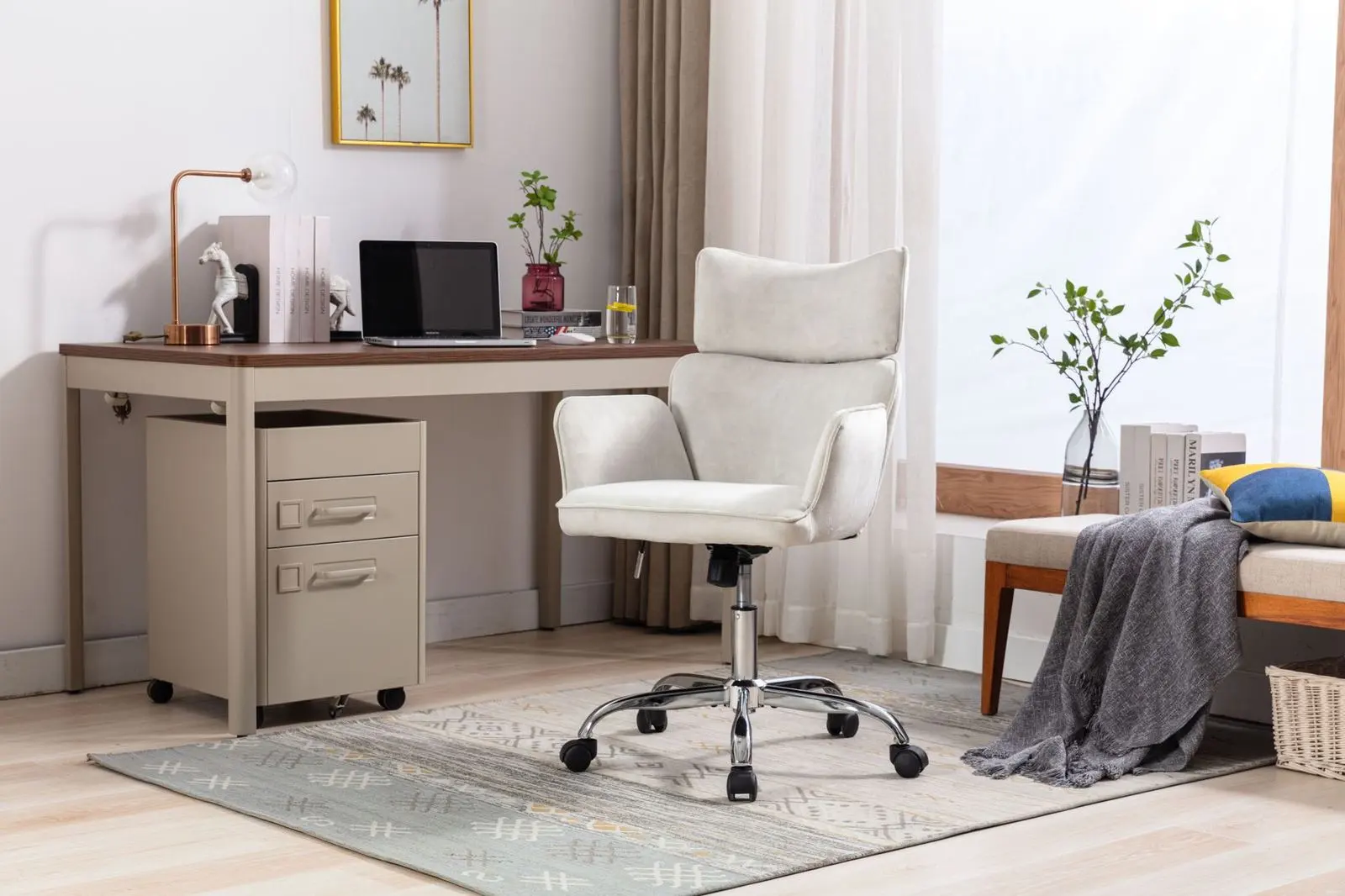
Keep the keyboard and mouse on the same level and close to the edge of the work surface, which is the advice in the university guidance. That keeps your elbows near your sides and your wrists straight instead of bent upward or reaching.
If your keyboard sits too far back, you tend to lean forward or lift your shoulders to reach it. Pull it toward you until your forearms rest comfortably and your hands hover over the keys.
Make a temporary spot work for short stretches
Sometimes you only need to answer a few messages from the sofa. For short-term use, the guidance offers workarounds rather than a full desk, as the source describes.
- Sit with back support, or use pillows and cushions to provide it.
- Rest the laptop on your lap with a hard surface such as a binder under it, or use a work surface with the screen angled upward to keep your neck neutral.
- On a couch, prop your feet on a box to lift the laptop and reduce hunching.
- Keep your wrists neutral.
- Take frequent breaks to stretch and move.
These tricks are for brief sessions. If the sofa becomes your daily desk, return to the raised screen and external keyboard described above.
Control light, glare and the room around you
Bright light on the display can cause glare, and glare can cause eye fatigue, according to the university’s lighting advice. Use good task lighting for printed materials, and avoid placing the monitor in front of a window or directly across from one.
The best position is 90 degrees to a window, so daylight reaches you from the side. Blinds can diffuse direct sunlight when the sun moves around.
The room matters too. If your only quiet corner is where you sleep, read how to make bedroom relaxing to keep work and rest from blurring together. Read how to get rid of musty smell in house if the air feels stale before you settle in for long sessions.
Frequently asked questions
Can I use my laptop on the sofa all day?
Show answer
It is a poor long-term plan. A laptop’s linked screen and keyboard make a neutral posture impossible, so the sofa works only as a short-term fallback with plenty of support and movement.
What if my chair has no lumbar support?
Show answer
Tuck a lumbar pillow behind your lower back, or roll up a towel and use it the same way. Either one gives the curve of your spine something to rest against.
Where should my monitor sit relative to a window?
Show answer
Turn the desk so the window is at your side. The university page recommends a 90 degrees angle to the window, with blinds to soften direct sun.
How do I stop my neck from aching at a laptop?
Show answer
Raise the screen with a riser or a stack of books, then connect a separate keyboard and mouse. Stand up and stretch often as well.